
 Español
  Português PT
Your PC Overheating? How to Drop 15 °C for Free | Airflow Guide 2026 — Hiditec Global
- 25 May, 2026
- Home , News
- 0 Comments
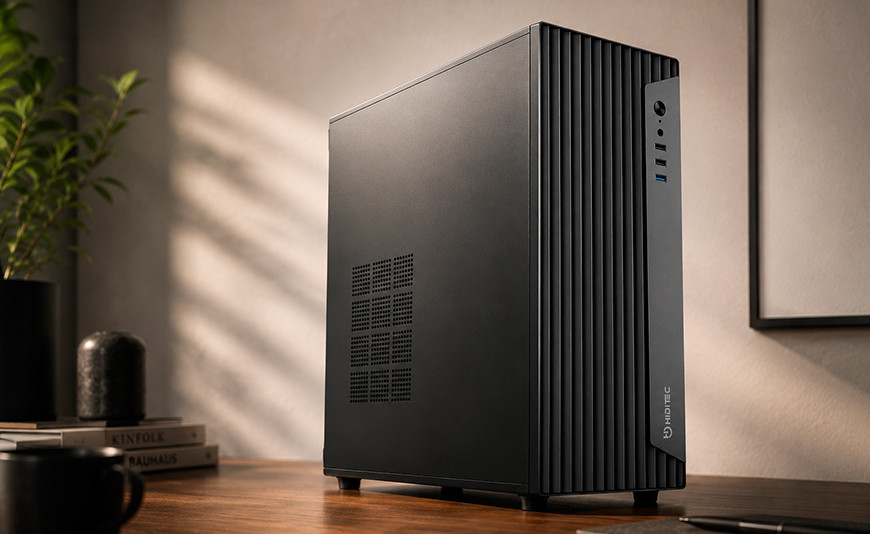
Is Your PC Overheating?
How to Drop 15 °C Without Spending a Single Euro
You spend hundreds of euros on CPU, GPU and RAM. But if the air inside your case doesn't flow correctly, all that hardware runs hotter, performs worse and ages faster than it should. This guide explains the real science behind airflow, the most common mistakes and how to fix them once and for all.
The essentials before touching a single fan
Airflow is functional, not aesthetic. Your fans' ARGB lighting looks great, but their real job is moving air in the right direction. A wrongly oriented fan can turn your case into a reverse convection oven.
Case pressure changes everything. Positive pressure (more air in than out) or negative pressure (more air out than in) isn't just theory — it determines how much dust your PC collects and how heat is distributed across components.
Cables silently kill airflow. A poorly managed cable bundle running across the case can raise your GPU temperature by 5 to 10 °C without changing a single fan. Cable management is cooling, not aesthetics.
The case is the limit of everything. With a poorly designed chassis, you can add all the fans you want — the result will still be mediocre. Front panel design, panel perforation and internal volume are the factors nobody compares before buying.
Airflow is the great forgotten element of gaming hardware. Everyone talks about GHz, VRAM and CAS latency, but nobody talks about why the €600 GPU you just bought is running 15 °C hotter than it should, or why your processor hits thermal throttling mid-session even though you have a high-end cooler.
The answer, in most cases, lies in the airflow inside the case. Or more precisely, its absence. In 2026, with GPUs regularly consuming between 300 and 450 W and high-performance CPUs exceeding 200 W under load, airflow is no longer an advanced optimisation — it's a basic requirement for any build that wants to perform consistently. Not optimising airflow in 2026 is like buying a racing engine and leaving the oil filter clogged.
1. What airflow is and why it determines your PC's real performance
Airflow is the path air takes through the inside of your case: it enters cold, absorbs the heat generated by components and exits hot. It sounds simple, but the variables that affect that path are many: the number of fans, their orientation, the design of the case's front panel, internal obstacles (cables, drives, the GPU itself) and the pressure difference between the inside and outside of the case.
Simply explained: Imagine the inside of your case is a room. When it's hot, you open the windows — the ones on one side let in fresh air and those on the other side push the hot air out. If you only open the exit windows, the hot air moves but little fresh air comes in and the room stays warm. If you only open the entry windows, fresh air comes in but has nowhere to go and the temperature doesn't drop either. The balance between incoming and outgoing air is what keeps the room cool. In a PC case, exactly the same thing.
| Concept | What it means | Real impact on temperatures |
|---|---|---|
| Intake | Fans that push cold air into the case | Without enough intake, GPU and CPU don't receive fresh air to dissipate heat |
| Exhaust | Fans that expel hot air to the outside | Without enough exhaust, heat builds up and internal ambient temperature rises |
| Positive pressure | More intake CFM than exhaust CFM | Less dust accumulation, but risk of heat pockets if exhaust is insufficient |
| Negative pressure | More exhaust CFM than intake CFM | More dust through gaps, but avoids heat pockets at the rear of the case |
| CFM (Cubic Feet per Minute) | Unit of airflow for a fan | Higher CFM = more air moved. But more CFM isn't always better: depends on case design |
2. The 5 airflow mistakes silently ruining your gaming PC
These are the mistakes we see repeated constantly in builds at every budget level. None of them require buying new hardware to fix:
Mistake #1: All fans pointing in the same direction
The problem
Installing all fans blowing inward (all intake) or all extracting (all exhaust) seems intuitive but produces the opposite effect. Either the case becomes a pressure chamber with no heat outlet, or the hot air has no orderly way to escape.
The correct solution
The classic configuration that works best in most mid-tower cases: front fans as intake (pushing cold air toward CPU and GPU), rear fan as exhaust (extracting the hot air that rises by convection). Top fans, if present, also as exhaust.
How to detect it
Put your hand behind the case while under load. If little or no hot air is coming out, you have an exhaust problem. If the front barely draws air, you have an intake problem. With HWiNFO64 you can monitor temperatures in real time to see if the heat issue is in the CPU, GPU or both.
Mistake #2: Cables blocking the "air corridor"
The problem
The air entering through the front has to reach the CPU and GPU. If along that path there's a bundle of PSU cables crossing the case side to side, the air hits them, creates turbulence and loses velocity. Result: components receive slower, warmer air than necessary.
The correct solution
Route cables through the rear chamber of the case. Cases with a dual-chamber design — like the Hiditec BLOK — have space behind the motherboard tray specifically designed to hide cabling and keep the interior clean. With a modular PSU, you only connect the cables you need and the interior stays clear.
The real impact
Proper cable management can lower GPU temperature by 5 to 10 °C without changing any fan. In long gaming sessions, that difference can be what separates a stable frame rate from thermal throttling.
Mistake #3: Solid plastic front panel strangling intake
The problem
Many gaming cases have flashy front panels with lighting but very little perforation. The front fans are there, but they're drawing air through nearly solid plastic with minimal vents. Real CFM drops sharply and internal temperature rises between 8 and 15 °C compared to an equivalent mesh front.
The correct solution
Choose a case with a perforated or mesh front from the start. If you already have a case with a solid front, some models allow you to slightly detach the panel to leave an air gap on the sides. It's a partial fix, but can improve temperatures by several degrees at no extra cost.
Data worth knowing
Comparative tests published by sites like Tom's Hardware and Hardware Unboxed show GPU temperature differences of up to 12 °C between a mesh-front case and a solid-front case using exactly the same fans and internal configuration.
Mistake #4: Clogged dust filters
The front and bottom dust filters do a quiet but critical job. When they get clogged with accumulated dirt, they dramatically reduce the airflow that can enter the case. A dirty filter acts exactly like a solid plastic front panel: it strangles intake.
Solution: Clean filters every two to three months, especially if you have pets or the PC sits on the floor. Magnetic quick-release filters — like those on the Hiditec BLOK case — make this a thirty-second task, not a twenty-minute screwdriver job.
Mistake #5: GPU fans facing down with no clearance
Most modern GPUs have their fans on the bottom face of the card. Those fans need space to draw in cold air. When the GPU sits too close to the case floor or has cables directly below it, the GPU fans recycle the same hot air over and over.
Solution: Check that there is at least 3 cm of clear space between the bottom of the GPU and the case floor. In builds where the GPU sits in the first PCIe slot this usually happens by default in well-designed mid-tower cases.
3. The optimal airflow configuration for your case and performance level
There's no single perfect universal configuration. What works best depends on your case, your hardware and the load level you put on the system. Here are the recommended configurations by profile:
| Use profile | Recommended configuration | Number of fans | Target pressure |
|---|---|---|---|
| Office / general use | 1 front intake + 1 rear exhaust | 2 fans | Slightly positive |
| Mid-range gaming (RTX 3060 / RX 7600) | 2 front intake + 1 rear exhaust | 3 fans | Balanced / slightly positive |
| High-end gaming (RTX 5070 Ti / RX 9070 XT) | 3 front intake + 1 rear exhaust + 1 top exhaust | 5 fans | Slightly positive with active exhaust |
| Workstation / editing + gaming (CPU 200W+) | 3 front intake + 2 top exhaust + 1 rear exhaust | 6 fans | Balanced with top exhaust priority |
| Active OC / aggressive overclocking | Maximum front intake + top and rear exhaust at maximum | 7+ fans or AIO | Neutral with very high flow |
4. Why case design is 50% of your airflow (and nobody tells you before you buy)
You can put the best fans on the market inside a poorly designed case and still have worse temperatures than someone with mid-range fans inside a well-designed case. The case design — especially the front panel — determines how much air can physically enter the system, regardless of how many fans you have.
Simply explained: It's like trying to fill a bathtub with the tap half blocked. You can open it to full blast (high-CFM fans), but if the water can't get through the front (case with poor airflow design), the tub takes twice as long to fill. The limit isn't the tap — it's the opening.
What to look for in a case for real airflow
Perforated or mesh front panel: This is the single most important factor. A mesh front allows 2 to 3 times more airflow than a solid plastic front with side vents. Look for a perforation percentage above 30% on the front panel.
Dual-chamber cable management: Cases with dedicated space behind the motherboard tray keep the interior free of cables, leaving the airflow path clear of obstacles.
Magnetic dust filters: Not as an aesthetic feature, but a functional one. Filters that are easy to clean are the ones that actually get cleaned regularly. Those that require unscrewing the case end up full of dust.
Internal volume and clearance above the GPU: High-end 2026 GPUs measure between 300 and 350 mm. They need space not just in length but in height: their bottom fans need at least 3 cm of clearance to draw air properly.
What gaming case marketing won't tell you
Most gaming cases are marketed by highlighting the tempered glass panel, ARGB lighting and number of included fans. None of these three features directly affect real airflow.
What matters — and rarely appears in adverts — is the front panel design, top panel perforation, main chamber volume and ease of cable management. These are the factors that determine whether your PC runs cool or relies on throttling to avoid overheating.
Before buying any case, look for reviews with real temperature comparisons and don't trust the number of included fans as a thermal performance indicator. A case with 3 stock fans and good design consistently outperforms one with 6 fans and a restricted front panel.
5. How to choose the right fans: what actually matters
Once you have the right case and cables properly managed, fans are the next factor. But choosing them well requires understanding which specs are relevant and which are pure marketing.
| Specification | What it actually indicates | Important for airflow? |
|---|---|---|
| CFM (Cubic Feet per Minute) | Maximum airflow the fan can move | Yes, essential for intake |
| Static pressure (mmH₂O) | Ability to move air against resistance (filters, radiators) | Yes, critical for AIO radiators |
| Maximum RPM | Maximum rotational speed | Relative: higher RPM = more noise. PWM manages this |
| PWM control | Motherboard adjusts RPM based on temperature in real time | Yes, allows silence at idle and power under load |
| FDB or hydraulic bearing | Type of bearing on the fan shaft | Important for longevity and noise level |
| ARGB lighting | Aesthetic effect with addressable LEDs | No. Zero impact on thermal performance |
6. The PSU generates heat too: the component nobody includes in airflow planning
The power supply unit has its own fan and generates its own heat. In many cases, the PSU sits at the bottom with its fan facing down to draw fresh air from outside. This position is correct: PSU heat doesn't contaminate the inside of the case. But there are two situations where this fails.
The PC sits on the floor with no clearance underneath
If the PSU fan faces down and the PC is on a surface with no gap (carpet, wooden floor without feet), the PSU fan draws air directly against the surface. Airflow drops dramatically and the PSU runs hotter. Solution: make sure the case has feet that raise the base at least 2 cm, or place the PC on an elevated stand.
The PSU is running near its capacity limit
A PSU running close to 100% of its capacity generates more heat than one running at 60–70%. And that extra heat needs to be dissipated somehow. Choosing a PSU with real headroom — like the Hiditec BZ power supplies on Amazon, which operate at their optimal efficiency point at 50–70% load — not only protects your components but reduces the heat generated inside the case. See the full range at Hiditec power supplies.
7. The factor no guide ever mentions: your room's ambient temperature
All the airflow analysis in the world has one physical limit that no fan can overcome: the temperature of the air entering the case. If your room is at 35 °C in summer — perfectly normal in southern Spain or the Mediterranean in August — the air your fans pull in is already at 35 °C before touching a single component. Your CPUs and GPUs will typically run 20 to 40 °C above that ambient temperature.
What this means: With a room at 35 °C and a processor with a typical 30 °C delta above ambient, your CPU will be at 65 °C at idle and easily hit 85–90 °C under heavy load even if your airflow is perfect. This isn't a failure of your cooling system — it's basic physics.
| Ambient temperature | Typical CPU temp under load (Ryzen 7 9800X3D) | Typical GPU temp under load (RTX 5070) | Throttling risk |
|---|---|---|---|
| 20 °C | 65–72 °C | 68–75 °C | None |
| 25 °C | 70–78 °C | 73–80 °C | Low |
| 30 °C | 75–83 °C | 78–86 °C | Moderate with improvable airflow |
| 35 °C (summer, southern Europe) | 80–90 °C | 83–90 °C | High without adequate cooling |
8. How much does performance actually improve with optimised airflow?
Before we wrap up, let's put real numbers on the table. Because the important question isn't whether airflow matters (it does) — it's how much. And the answer depends on your starting point:
| Improvement made | CPU temperature reduction | GPU temperature reduction | Approximate cost |
|---|---|---|---|
| Clean dust filters | 2 to 5 °C | 2 to 4 °C | €0 |
| Fix fan orientation | 3 to 8 °C | 3 to 7 °C | €0 |
| Properly manage cabling | 2 to 5 °C | 5 to 10 °C | €0 (time only) |
| Add intake fans | 4 to 9 °C | 5 to 11 °C | €15 to €40 |
| Switch to a mesh-front case | 5 to 10 °C | 8 to 15 °C | €50 to €120 |
| All improvements combined (worst-case starting point) | Up to 20 °C | Up to 25 °C | Varies by starting point |
Frequently Asked Questions about PC Gaming Airflow
Everything you need to know to optimise your PC's airflow in 2026
Is positive or negative pressure better in a PC case?
For most users, slightly positive pressure is the best option. With more air coming in than going out, dust tends to enter through the front filters (where it can be easily cleaned) rather than seeping through case gaps where it's harder to remove. Negative pressure can yield slightly better temperatures in some scenarios by improving extraction, but it increases dust accumulation on components like the motherboard and GPU. The ideal setup for mid-tower cases like the Hiditec BLOK is 2 front fans as intake plus 1 rear fan as exhaust, generating slightly positive pressure with good overall flow.
Is a 140 mm fan always better than a 120 mm fan?
In theory yes, because at the same RPM a larger fan moves more air with less noise. But in practice, the answer depends on the case. If your case has 120 mm slots, you can't directly install a 140 mm fan. And if you do it with adapters, you lose efficiency. What matters isn't the fan size but whether its CFM is right for the airflow your configuration needs. For most gaming mid-towers with 2–3 well-oriented 120 mm fans, the thermal result is excellent without needing to move up to 140 mm.
Does PWM fan control affect airflow at idle?
Yes, significantly. With PWM control, fans automatically reduce their RPM when the system is idle or under light load, generating virtually no noise. When temperature rises under load, RPM increases and airflow with it. Without PWM, fans always run at maximum RPM — constant noise with no real benefit at idle. All fans connected to the motherboard's fan headers can benefit from PWM control if correctly configured in the BIOS. The default fan curve on most modern motherboards is reasonable, but you can fine-tune it with software like Fan Xpert (ASUS), Dragon Center (MSI) or your board's built-in BIOS fan manager.
How many fans do I actually need for a high-end gaming PC?
For a high-end build with a 300–400 W GPU and 150–200 W CPU, the recommended minimum is 3 x 120 mm fans: 2 as front intake and 1 as rear exhaust. If your case allows it, adding a fourth fan as top exhaust improves the extraction of heat that rises by convection from the CPU and GPU. Beyond 4–5 fans in a standard mid-tower, additional benefits are marginal because the bottleneck becomes the case design itself, not the number of fans. The exception is if you have an AIO radiator: in that case, the radiator fans count separately and the rest of the case airflow follows the same rules.
What software should I use to monitor airflow and temperatures in real time?
For temperature monitoring, HWiNFO64 is the industry reference: it shows in real time the temperature of each CPU core, GPU temperature (core, VRAM and hotspot), voltage and power consumption. For monitoring fan RPM and adjusting speed curves, use your motherboard manufacturer's software (Fan Xpert, Dragon Center, AI Suite) or SpeedFan for a more manual approach. To check if you're suffering from thermal throttling, look in HWiNFO64 for "CPU Package Power Limit" and "GPU Throttle Reason" values — if active throttling values appear, you have a temperature problem that better airflow can solve.
How often should I clean the dust filters on my case?
It depends on your environment: if you have pets (especially dogs and cats that shed), every month to six weeks. If you have no pets and the PC is on a desk (not the floor), every two to three months. If the PC is on the floor and/or in a carpeted room, every six weeks at most. The simplest way to know when to clean them is visual inspection: when the filter starts showing a visible layer of fluff, it's time to clean it. Magnetic quick-release filters like those on the BLOK case let you do this in thirty seconds without turning off the PC or using any tools. For the actual cleaning, a quick blast of compressed air or a damp cloth is enough in most cases.
Sources and references:
- PC Hardware Pro: How to configure airflow in your PC case (January 2026)
- HW Libre: How to optimise PC airflow and improve cooling (December 2025)
- Dunao PC: High-airflow PC cases become the new favourite among gamers
- Hiditec: BLOK mid-tower case (official technical specifications)
- Hiditec: Full power supply range (550 W to 1050 W)
- Hiditec Blog: Complete PC component compatibility guide 2026
- Hiditec Blog: BZ PRO series technical analysis and electrical safety
- Hiditec Blog: How much RAM do you actually need in 2026
- Hiditec Blog: How to build your PC in 2026 — 3 complete builds
- Amazon: Hiditec BZ power supplies (Japanese capacitors, 80 Plus Bronze certified)
- Amazon: Hiditec gaming fan pack (compatible with BLOK and SKY cases)





Leave a Reply Cancel Reply