
 Español
  Português PT
Cable Management Pro: The Ultimate Guide to a Clean & Efficient Setup
- 07 Apr, 2026
- Home , News
- 1 Comments
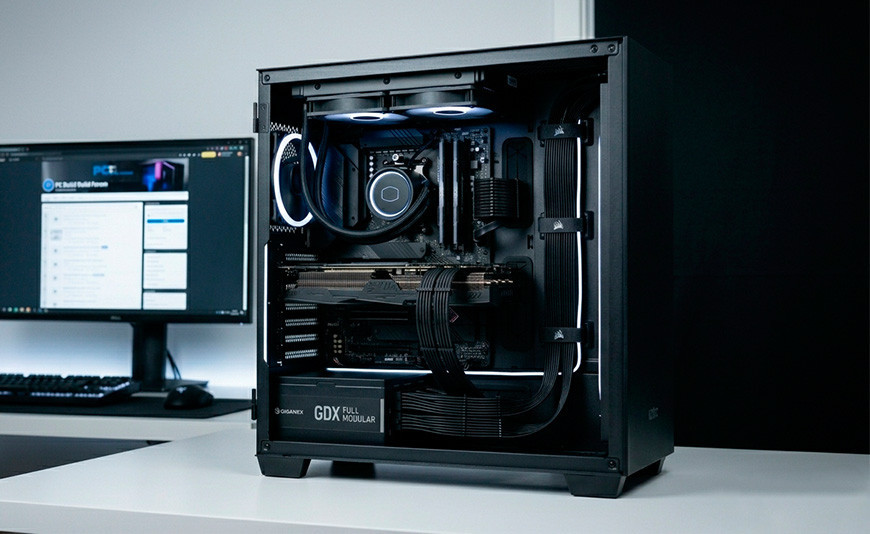
Cable Management Pro: The Art of Invisible Tidiness
It’s not just about looks. Professional cable management is the insurance policy for your components and the secret to superior thermal performance.
Opening your PC's side panel only to find a "rat's nest" of cables isn't just an eyesore; it's a physical barrier to airflow. At Hiditec, we know that high-performance hardware generates heat, and that heat needs a clear path out. Today, we’ll show you how to transition from a chaotic build to a showroom-worthy masterpiece, using the same techniques that hardware masters like Nate Gentile or JayzTwoCents apply to their most extreme builds.
Why should you invest your time in this?
| ✅ Pros of Pro Cable Management | ❌ Cons of Cable Chaos |
|---|---|
|
|
The First Step: The Modular Power Supply
If you use a standard PSU, you'll have "extra" cables taking up unnecessary space. This is where our GDX Full Modular series shines. By connecting only the cables you actually need, you eliminate 50% of the clutter before you even start routing.
Hiditec Recommendation: Always use the flat cables included with our PSUs; they are more flexible and easier to guide through the chassis' grommets.
Pro Routing Strategy
1. Planning (The Path of Least Resistance)
Before plugging anything in, identify your case's routing holes (like those on the H2 AIR). Thickest cables (24-pin and CPU) should be the first to be positioned.
2. The Rear Anchor
Use the tie-down points behind the motherboard tray. Use Velcro straps to group cables by "families": power cables on one side, data and fan cables on the other.
3. Tension Control
Never force a cable to reach a connector. If it's too tight, find an alternative route. A strained cable can damage your motherboard ports over time.
Learn from the Masters
If you want to see the level of obsession required, check out the build guides from these industry leaders:
Your Management Toolkit
Velcro Straps
Reusable and safe for cables. Perfect for setups that evolve over time.
Cable Combs
To keep individual GPU and Motherboard strands perfectly aligned.
Sleeved Extensions
For that ultimate level of color customization in your build.







Very informative post! Proper server rack cable management improves airflow, accessibility, and overall rack efficiency.